


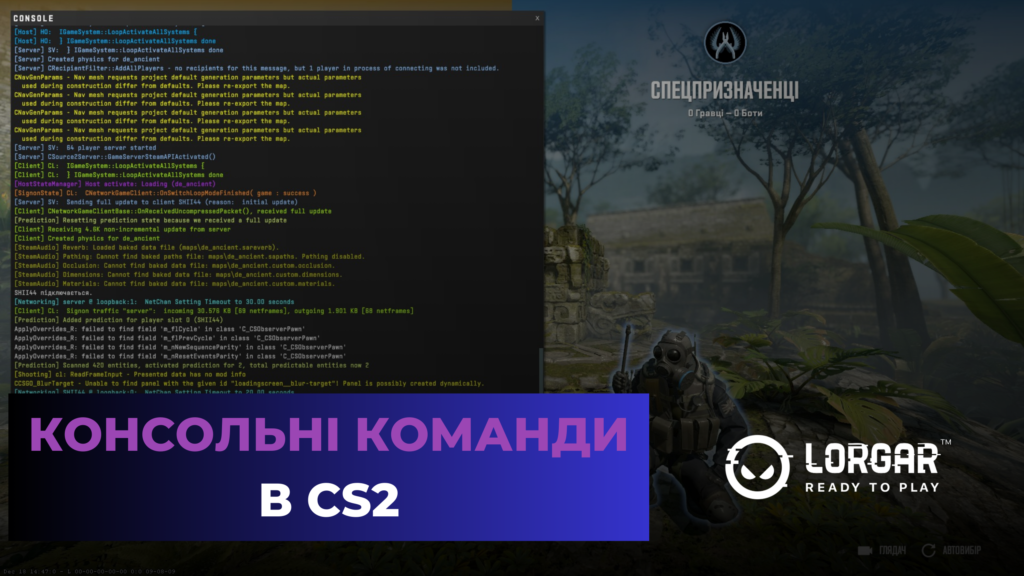
The developer console in Counter-Strike 2 is a great way to customize the game. Console commands help quickly apply changes to the game settings. We have gathered all the main console commands in CS2 that will help you increase FPS and improve your gaming experience.
How to open the developer console in CS2
In CS, the developer console is opened by pressing the (~) key. But if you want to use the console for the first time, it may not open because it is disabled in the settings.
In this case, you need to open the Game Settings, find the “Enable Developer Console” option and activate it. After that, you will be able to open the console with the default key (~). If you want to replace it, you can also do this in the game’s control settings or through the console command bind [new key] toggleconsole.
Setting up binds in CS2
A bind is a key combination that allows you to perform an action in the game. For example, when you open a training map, you can fly around it, or make a full buy with a single key press.
Binds in Counter-Strike 2 are configured through the developer console. To do this, you need to open it and then type bind key "action". Instead of key, you need to specify the button that will be responsible for this bind, and replace "action" with the desired command.
Let’s look at an example. If you open a map with bots and enter the command bind m "noclip" in the developer console, pressing this key will allow you to fly, and pressing it again will disable the function.
Console commands to improve CS2 performance
These commands allow you to adjust graphics quality, smoothness, set an FPS limit (if you need one), and much more. Here are the main commands that affect game performance:
- fps_max [0–999] – this command sets an FPS limit, meaning the frame rate will not exceed the number you specify. Setting an FPS limit is useful for weaker PCs to stabilize game performance. The value “0” removes the limit.
- mat_queue_mode [value] – affects the number of CPU cores used by the game. The value “2” enables multithreading, which helps increase FPS.
- r_dynamic [0/1] – enables or disables dynamic lighting. Turning it off can improve PC performance.
- cl_forcepreload [0/1] – CS loads all resources at the start of the match, preventing lag during gameplay.
- mat_queue_mode 1 – forces the game to automatically determine and use the optimal number of CPU threads.
- r_drawtracers_firstperson 0 – disables bullet tracers, helping reduce GPU load.
- cl_interp [value] – controls how smoothly the game displays other players’ movements by smoothing out lag. Lower values make the image clearer, but if the value is too low, it can cause delays.
- rate [value] – controls the speed of data transfer over the network, affecting how quickly you receive game information. The higher the value, the better the performance, but you need a stable high-speed internet connection.
- cl_updaterate [value] – determines how often the game receives updates from the server. For optimal performance, it’s best to set it to 128.
- engine_low_latency_sleep_after_client_tick true – improves game smoothness and reduces input lag.
Commands for adjusting the in-game HUD
These commands allow you to customize your HUD to suit your preferences by removing unnecessary elements and adding the information you need.
- hud_scaling – this command changes the size scale of HUD elements. Values typically range from 0.5 to 1.2.
- cl_hud_color [value] – allows you to change the HUD color.
- r_show_build_info [0, 1] – setting the value to 0 disables the game version watermark located in the bottom left corner.
- cl_draw_only_deathnotices [0, 1] – a value of 1 disables all interface elements, leaving only the killfeed and the crosshair.
- cl_radar_always_centered [0, 1] – the default value is 1, but if set to 0, the radar will no longer center on the player. This allows you to use the map more effectively and see a larger portion of it.
- cl_radar_icon_scale_min [0.4 – 1.25] – adjusts the size of elements shown on the radar.
- cl_radar_rotate [0, 1] – determines whether the radar rotates with the player or remains static.
- cl_radar_scale [value] – changes the radar’s scale. The minimum value is 0.25 and the maximum is 1.0. Professional players prefer values between 0.3 and 0.45.
- cl_hud_radar_scale [value] – affects the physical size of the radar on the screen. You can set values from 0.8 to 1.3, but 1.15–1.3 is recommended.
- cl_showfps [1/0] – enables or disables the FPS counter displayed in the top left corner. This command also has values 2 and 3, which provide more detailed information, but they are mostly useful for performance tuning and monitoring game stability.
- cl_hud_playercount_showcount [0/1] – enables or disables the display of the number of players still alive in each team.
- cl_showloadout [0/1] – enables or disables the display of your loadout located in the bottom right corner.
Crosshair settings
One of the main factors of success in CS2 is a properly configured crosshair. With individual settings, you can make it comfortable specifically for you, increasing focus and accuracy. All of this can be done using console commands.
- cl_crosshairstyle – this command changes your crosshair style. Currently, styles 2, 4, and 5 are relevant. Style 4 is the classic static crosshair, while 2 and 5 are variations of dynamic crosshairs.
- cl_crosshairsize – adjusts the length of the crosshair lines.
- cl_crosshairthickness – adjusts the thickness of the crosshair lines.
- cl_crosshairgap – adjusts the width between the crosshair lines.
- cl_crosshair_drawoutline – the value 1 adds a black outline around your crosshair.
- cl_crosshair_outlinethickness – controls the thickness of the outline around the crosshair; values from 0 to 3 can be used.
- cl_crosshaircolor – this command changes your crosshair color. Valve’s default color combinations are used as a base. You can also adjust the intensity of each color using the RGB model with commands cl_crosshaircolor_r, cl_crosshaircolor_b, and cl_crosshaircolor_g, which can have values from 0 to 255.
- cl_crosshair_t [0,1] – the value 1 disables the top line of the crosshair, making it T-shaped.
Mouse settings
The developer console in CS2 also allows you to set your desired mouse sensitivity.
- sensitivity [value] – set the mouse sensitivity (sens) to the value that works best for you.
Basic viewmodel commands
These commands allow you to adjust the position of weapon models on the screen.
- viewmodel_fov [value] – controls the field of view for your weapon. You can set a value from 54 to 68. At the maximum value, the weapon will appear farther away, increasing your surrounding visibility.
- viewmodel_offset_x [value] / viewmodel_offset_y [value] / viewmodel_offset_z [value] – these commands adjust the weapon view model along the X, Y, and Z axes.
Special Steam Workshop maps can also help you configure these values. One of the most popular ones right now is crashz' Viewmodel Generator CS2.
Sound settings
Console commands also allow you to adjust sound in Counter-Strike 2.
- volume [0-1] – adjusts the game volume. For example, if you set the value to 0.5, the volume will be 50%.
- snd_voipvolume [0-1] – adjusts the volume of your teammates’ voice chat.
- voice_mute [name of user, all] – mutes voice chat from users. You can block a specific player or everyone.
- voice_unmute [name of user, all] – enables voice chat again.
Commands for a training map
To improve their map knowledge, CS2 players need to study maps to learn grenade lineups, timings, angles where opponents may be, and much more. To train all of this, it is useful to create a local training map. However, without a set of console commands, your functionality will be limited.
- sv_cheats 1 – enables cheats on the server; without this, some commands will not work.
- mp_buytime 1 – allows you to buy at any moment and anywhere on the map.
- sv_showimpacts 1 – shows bullet impact locations.
- sv_infinite_ammo 1 – enables infinite ammunition.
- ammo_grenade_limit_total 5 – makes it possible to have 5 grenades at once.
- god – gives invincibility.
- sv_gravity [value] – changes gravity.
- cl_grenadepreview 1 – shows the grenade trajectory preview.
- mp_roundtime 60 – sets the round time to 60 minutes.
- bot_kick – removes bots from the map. all removes all bots; ct removes Counter-Terrorist bots; t removes Terrorist bots; [name] removes a specific bot.
- mp_limitteams 0 – disables the limit on the number of players per team.
- mp_autoteambalance 0 – disables automatic team balancing.
- bot_add [T/CT] [easy/normal/hard/expert] – adds bots to a specified team with the chosen difficulty.
- mp_startmoney 60000 – gives $60,000 at the start of the game.
- mp_restartgame 1 – restarts the match.
Summary
So, as you can see, console commands in CS2 allow you to configure the game more flexibly to improve your gaming experience. At the same time, don’t be afraid to experiment with commands — this will help you understand them better and choose the ones that will be most useful to you. Good luck on the server.


