Binds in Counter-Strike 2 play an important role, as they allow you to make your gameplay more productive by assigning a specific action or multiple actions to a single key. In this guide, we will tell you how to create a bind in CS2 and which of them are the most useful.
First, we need to figure out what a bind is in a video game. Simply put, it is a console command that allows you to assign a game action to a specific key on the keyboard or mouse. Thanks to this, complex or frequently repeated actions are performed more easily.
You can bind a key in CS2 through the developer console. The console opens by pressing the (~) key. If you have not used it before, the console may not open because it is not enabled. To enable the developer console, you need to go to the settings and find the option “Enable Developer Console” and activate it. The key used to open the console can be changed in the settings.
After opening the console, you need to enter the bind you want. The general form of a bind looks like this: bind "[key]" "[command]".
Binds for jumping with the mouse wheel:
Jump with crouch:
Blood and bullet marks can interfere with optimal visibility. Therefore, this bind helps improve the visibility of objects on the map:
Everyone knows that in CS2 movement with a knife is faster than with other weapons. That is why players often set a bind to switch from their main weapon to a knife in order to do it quickly and not waste time. To do this, you need the following command:
Bind to quickly switch back to the weapon you were holding before the current one:
Switching hands:
To quickly drop the bomb, you can set up a bind instead of performing two actions: equipping the C4 and pressing the drop weapon key. Instead, a single key will do this automatically.
Most professional players use the “C” key for dropping the bomb, but you can replace it with any key that is more convenient for you.

If you have trouble quickly equipping grenades, you can set up binds so that a specific key corresponds to a specific grenade. This allows you to react faster to events and use grenades more effectively.
Note that you can also configure these settings through the in-game control options.
In CS, you can create a bind that, when activated, enlarges your crosshair to fill the entire screen. This allows you to position it more precisely as a reference point for throwing grenades.
It is important to note that in CS2, a setting called “Grenade Lineup Lines” has been added to the crosshair options. When you enable it, you will see a large crosshair when you equip a grenade.
There is also a bind that removes the crosshair from the screen. It can be useful for practicing shooting without a crosshair, as well as for taking screenshots.
Sound plays a key role in CS2, as it allows you to hear the direction of enemy movement and react accordingly. While holding the key you assign, the game volume will increase, allowing you to better hear what is happening around you.
However, the volume value needs to be adjusted to your own settings. If your volume is lower than 0.5, then with these parameters the volume may drop to 0 after releasing the key, because the game usually rounds values down to the minimum.
Quick sound mute/unmute:
Chat Communication Binds
Short phrases that can be bound for quick communication with your team.
This command allows you to turn 180 or 360 degrees much faster. Thanks to this, when you receive information about an enemy behind you, you will be able to turn around more quickly.
If you can’t find the bind you need online, or if you want to create your own but don’t know how to do it correctly, you can use special websites that help generate binds for Counter-Strike.
On a bind generator website, you only need to choose the key you want and the action it should perform. After that, you will receive the required commands in a table, which you can add to the game.
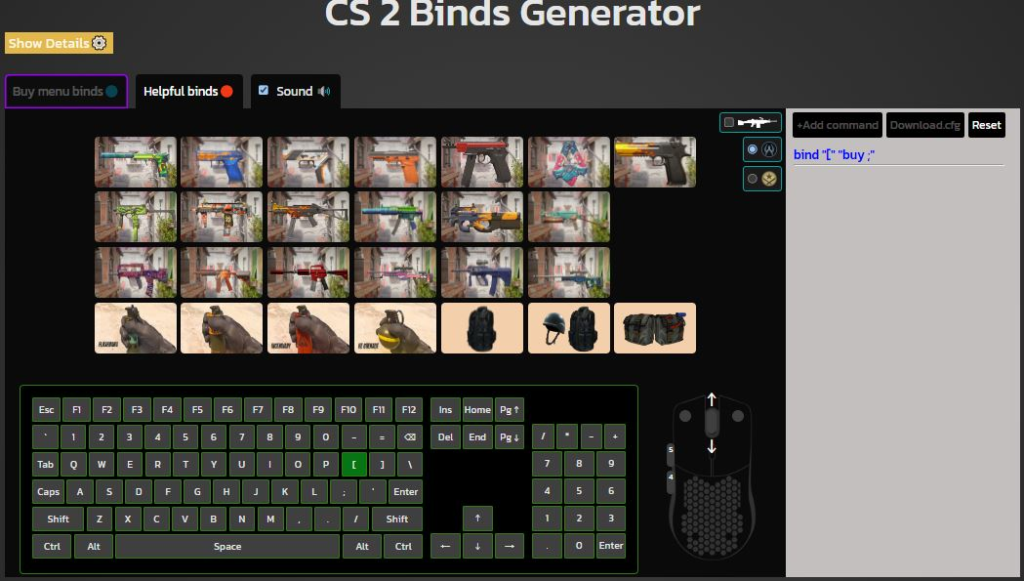
It is worth noting that not all binds are saved after you exit the game. Therefore, we recommend creating a config with all the binds you need; you can also add console commands and various settings there.
We hope that this list of CS2 binds will improve your results and help you get even more enjoyment from the game. Good luck on the server!


