Logitech G hardly needs an introduction to our readers. And after so many generations of gaming mice, you might think it would be difficult to come up with anything fundamentally new. Especially when modern peripherals have long been competing over grams of weight and fractions of a millisecond.
That desire to rethink the familiar mouse click is exactly where the SUPERSTRIKE story began. With the PRO X2, Logitech replaced the traditional microswitches under the main buttons with inductive sensors and a separate haptic mechanism.
We received the new Logitech G PRO X3 SUPERSTRIKE and the PRO X CONTROL mouse pad for review. Both products belong to the professional PRO lineup and were developed with input from esports players.
The PRO X3 SUPERSTRIKE is no longer the lineup’s first encounter with this new technology. Instead, it focuses on refining the details: electronics, battery life, and weight distribution. That makes the previous SUPERSTRIKE the most interesting point of comparison.
The core idea remains unchanged: you choose when a button actuates, how quickly it becomes ready for another press, and how pronounced the feedback feels under your finger. Alongside the mouse, we’ll also take a look at the PRO X CONTROL mouse pad, which focuses on a predictable glide.
Let’s see what has changed since the X2 and whether these improvements are enough to justify moving to the new generation.
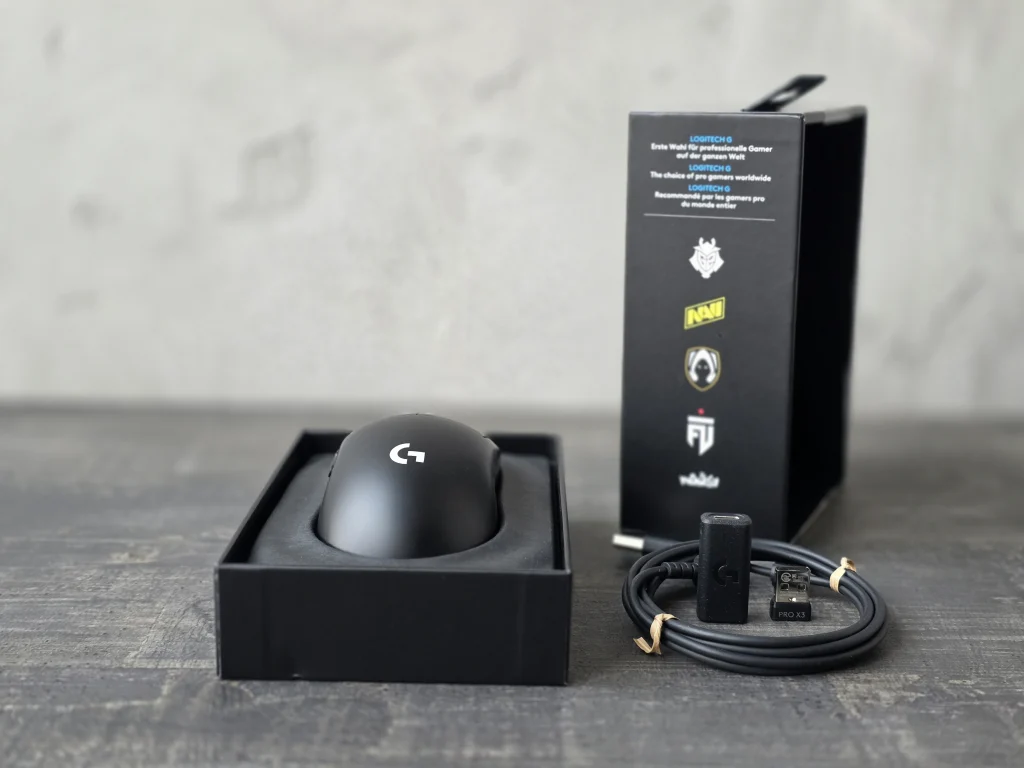
As always, let’s start with the contents of the box. The PRO X3 SUPERSTRIKE comes in understated black packaging. The side features the logos of esports organizations, including NAVI and G2 Esports. The mouse itself sits in a fitted insert.
Along with the mouse, we get a LIGHTSPEED wireless receiver, a USB Type-A to Type-C cable, and a receiver extension adapter.
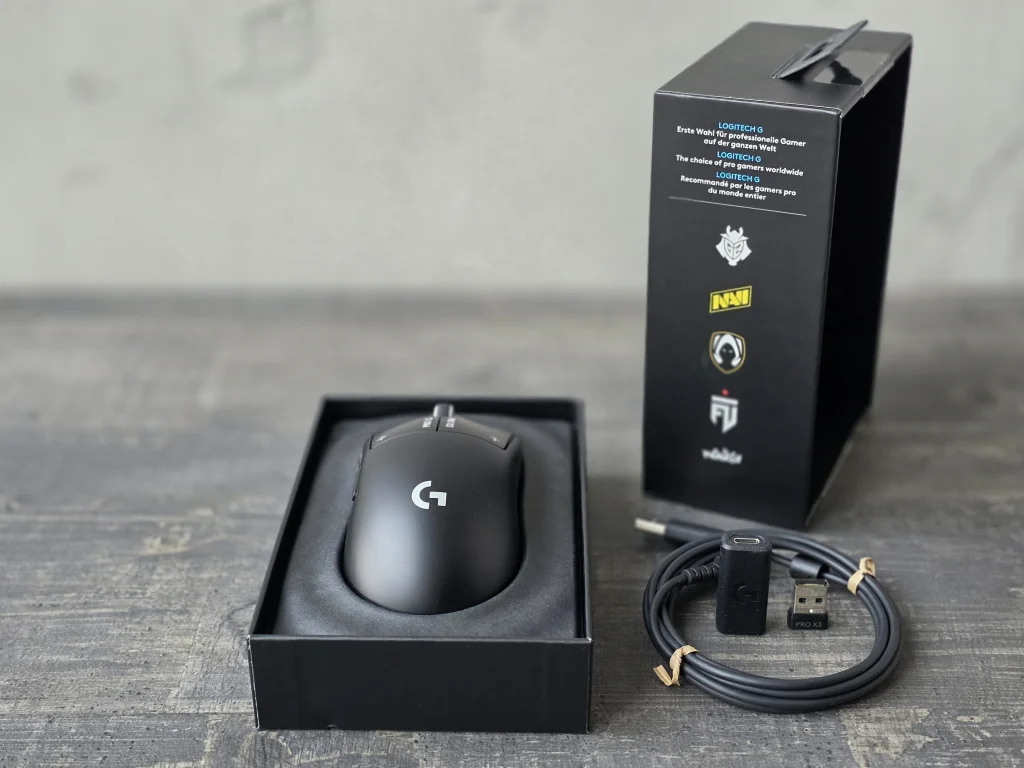
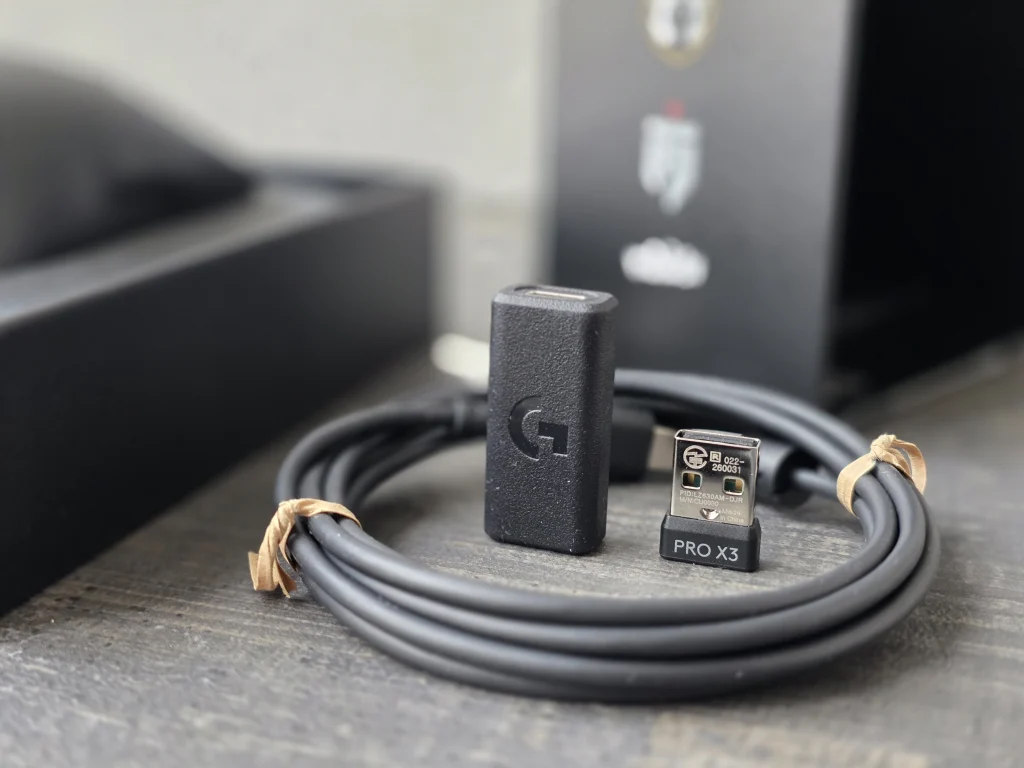
The adapter lets you position the receiver right next to the mouse rather than leaving it in a USB port on a PC tower, which is often tucked under the desk. The USB receiver itself is fairly compact, carries PRO X3 branding, and uses a standard USB Type-A connector.
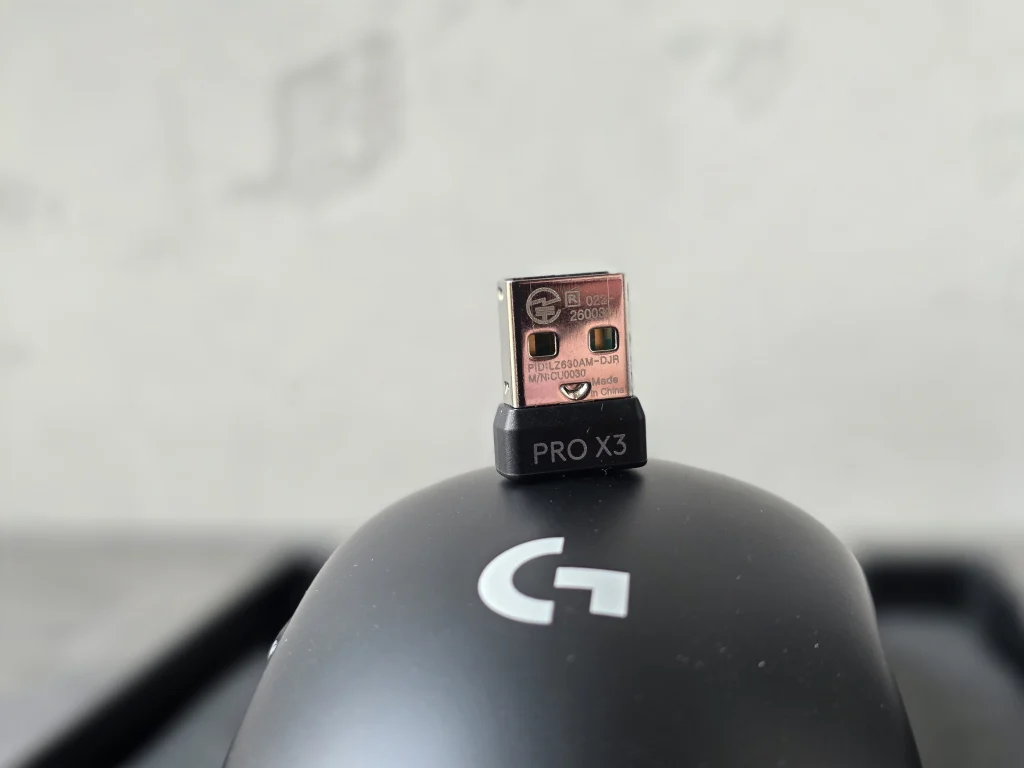
Of course, given the mouse’s positioning, I would have liked to see a spare set of feet included as well. Overall, though, this is a familiar set of accessories for a wireless gaming device.
On the outside, the PRO X3 SUPERSTRIKE remains very close to the X2. Logitech has kept the familiar silhouette and button layout, so the new model doesn’t feel like an attempt to reinvent the shape of the mouse.
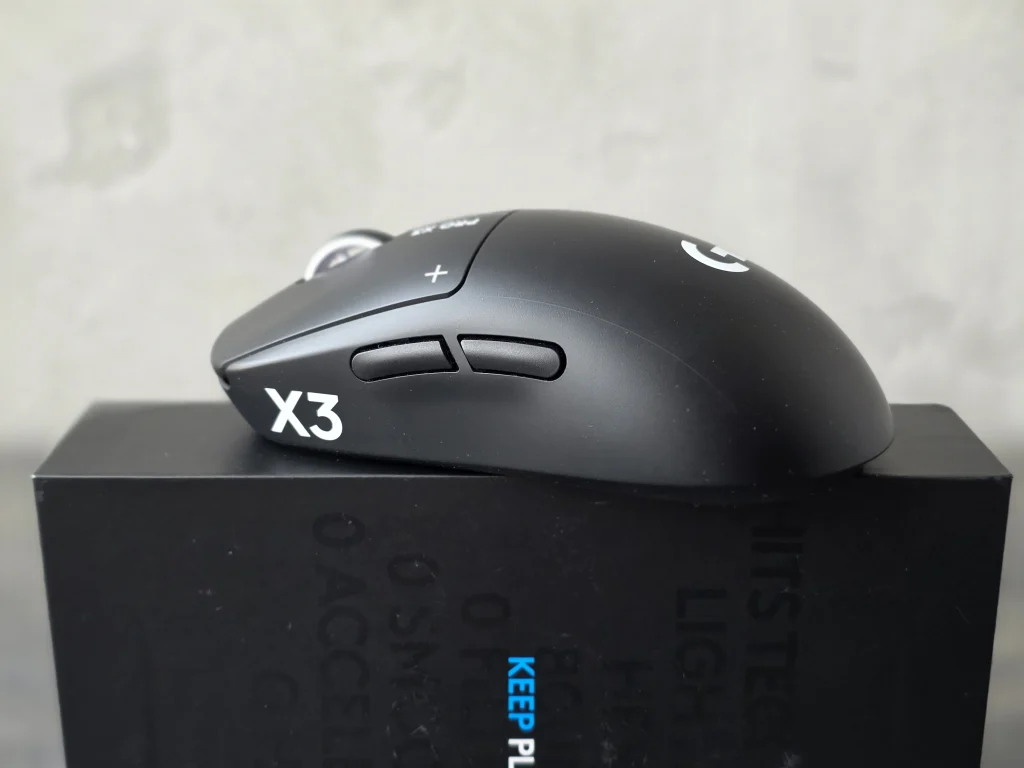
The body has a symmetrical silhouette with smooth lines and a hump toward the middle and rear. Despite that symmetry, the mouse is primarily designed for right-handed use, since the additional buttons are located exclusively on the left side.
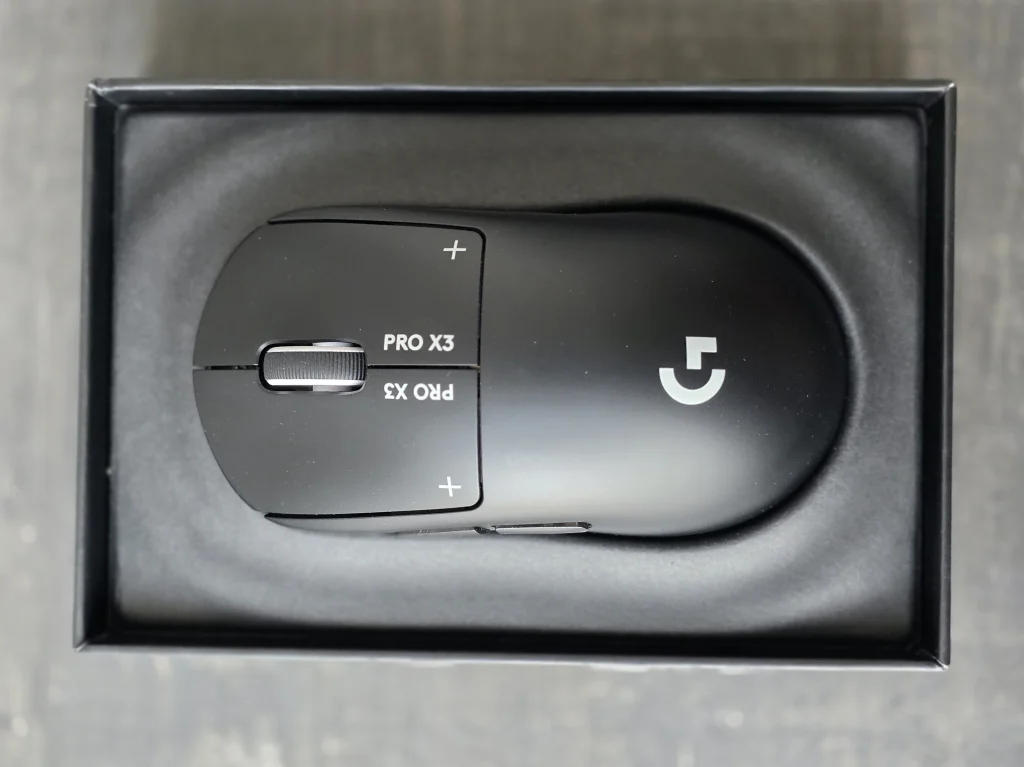
To me, that is more of a positive for anyone who already finds the previous SUPERSTRIKE comfortable. Not everyone needs a new shell just for the sake of having one. Fans of more pronounced ergonomic contours may find this shape a little too neutral.
The body has a matte finish, with no perforations or aggressive decorative elements. Our black sample looks understated, with the familiar G logo on the back and contrasting lettering on the buttons and sides.
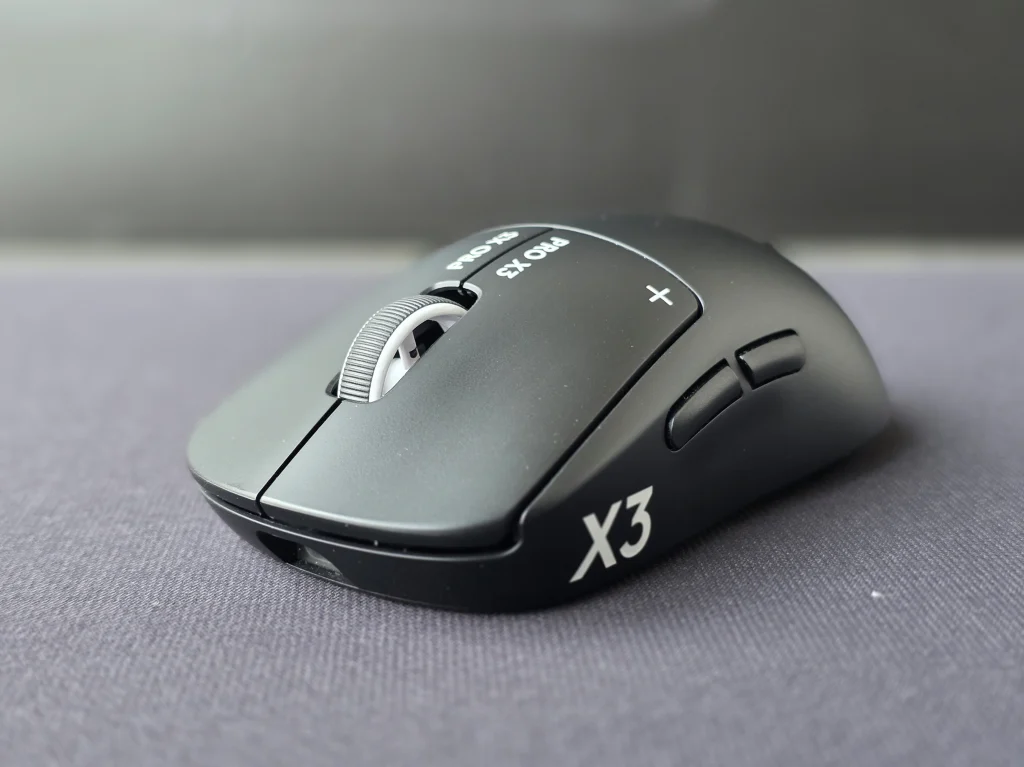
There is a large SUPERSTRIKE wordmark on the right side, while the left carries the X3 branding and two additional buttons.
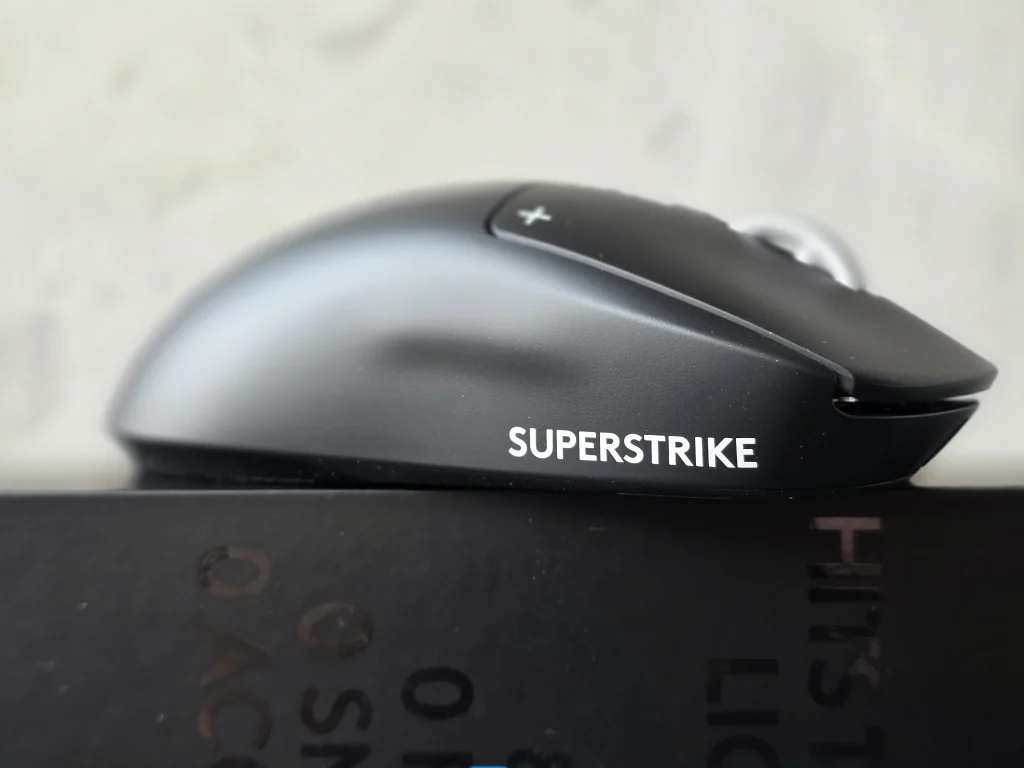
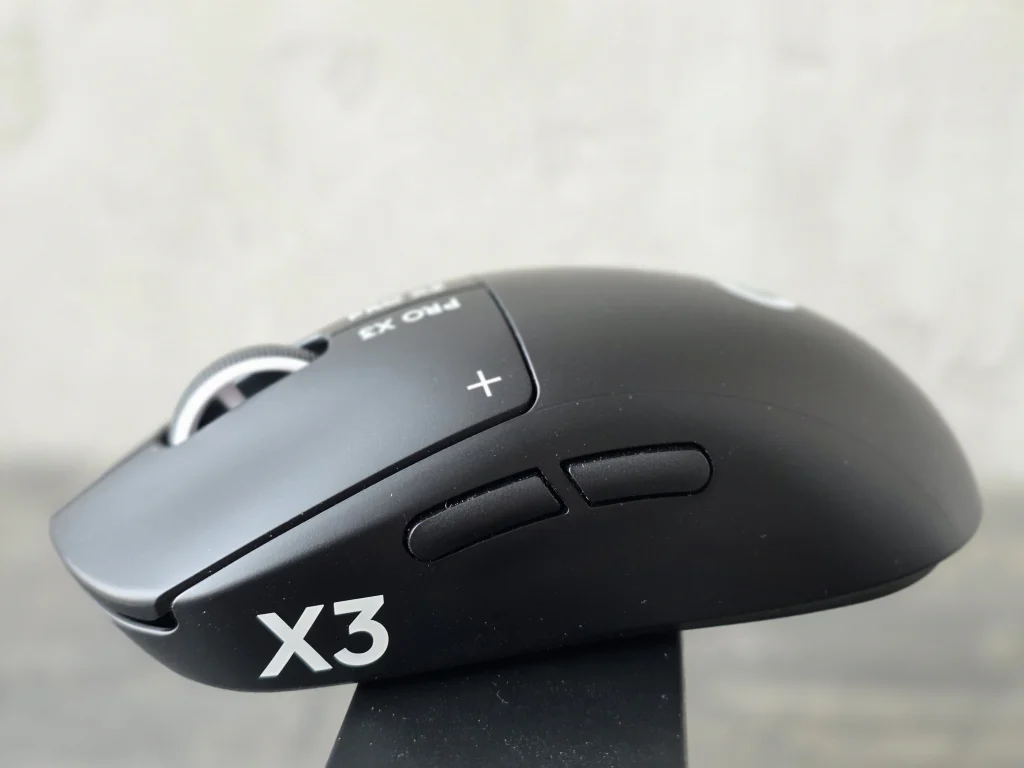
Each main button features PRO X3 lettering and a “+” symbol. Together with the large X3 on the side, these are the easiest ways to identify the new generation without checking the specifications.
The scroll wheel has a rubberized surface and contrasting sides. As before, it is a conventional gaming scroll wheel with defined steps, without horizontal scrolling or a free-spin mode.
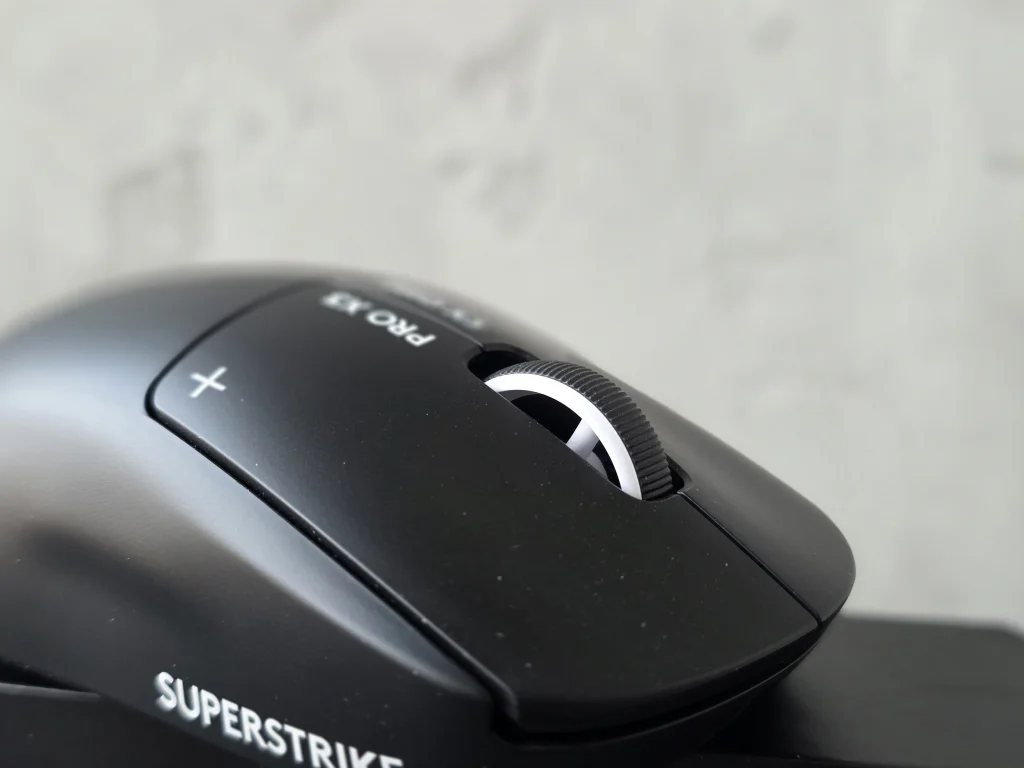
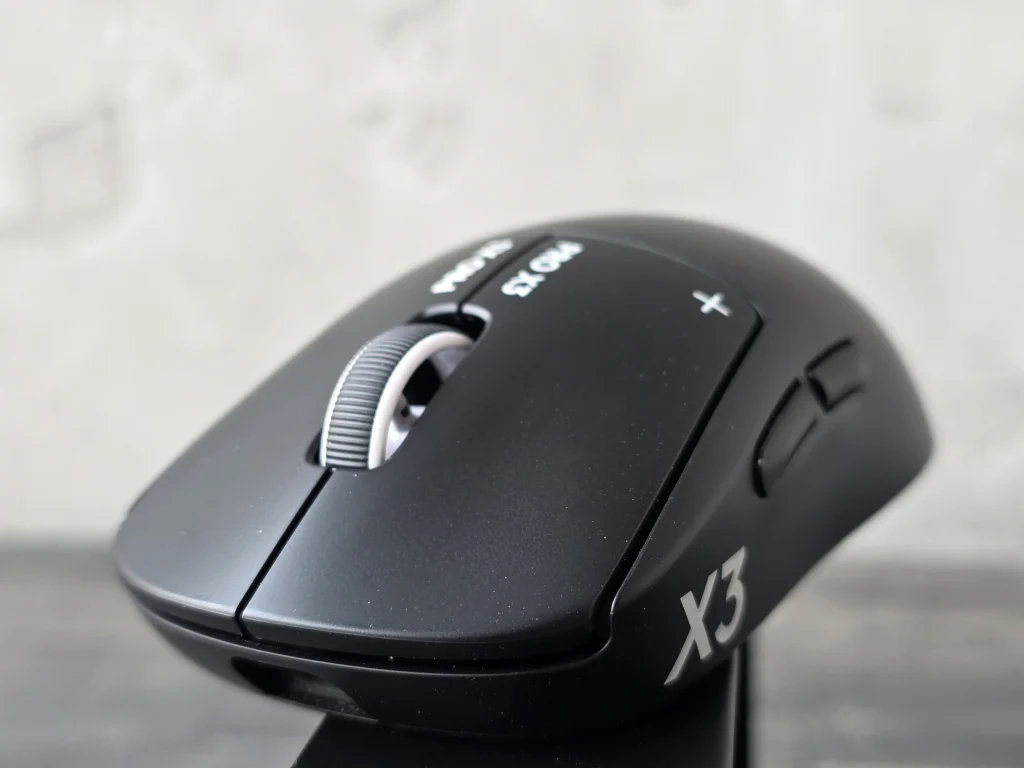
You get five buttons in total: the two main buttons, the scroll-wheel click, and two more on the left side. There is no dedicated physical DPI button. Of course, you can reassign one of the existing buttons through G HUB, but that involves a trade-off.
The PRO X3 SUPERSTRIKE has a stated weight of 59 grams, or 61 grams for the EMEA version. But the changes from the X2 are not just about grams: Logitech has revised the internal layout and moved the weight distribution closer to the center of the body.
For a low-sensitivity player who frequently lifts and repositions the mouse, balance can matter just as much as the weight itself.
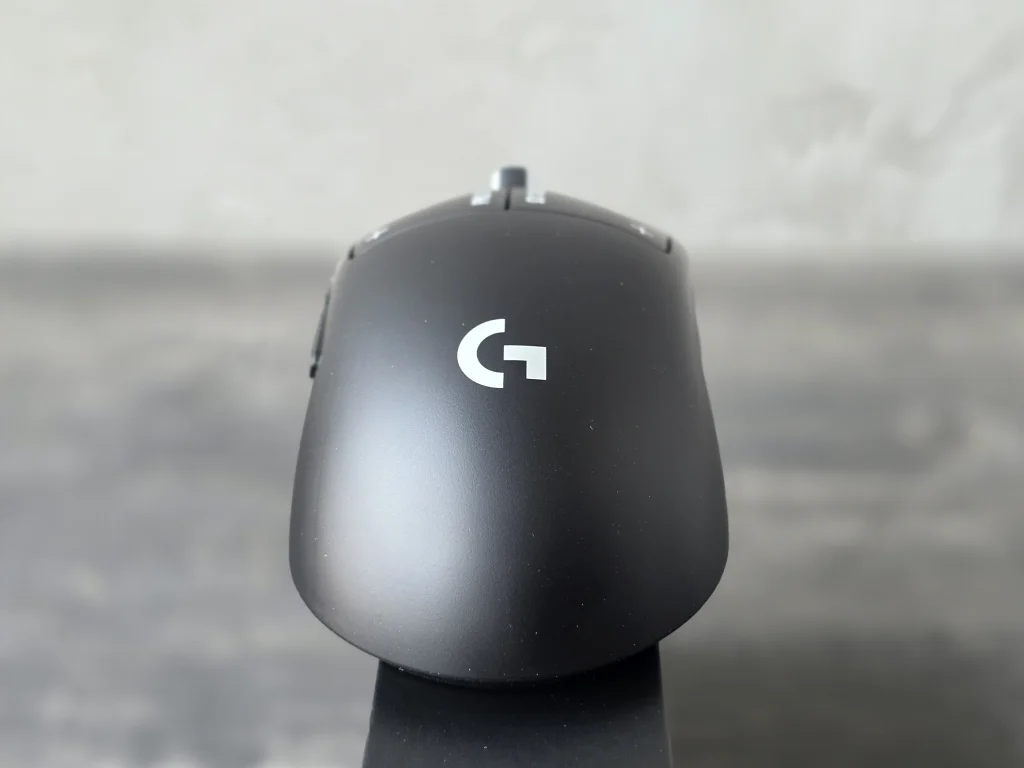
On the underside, you’ll find the sensor, power switch, mouse feet, and a round removable cover. Beneath it is a storage compartment for the wireless receiver—a useful little detail when taking the mouse with you.
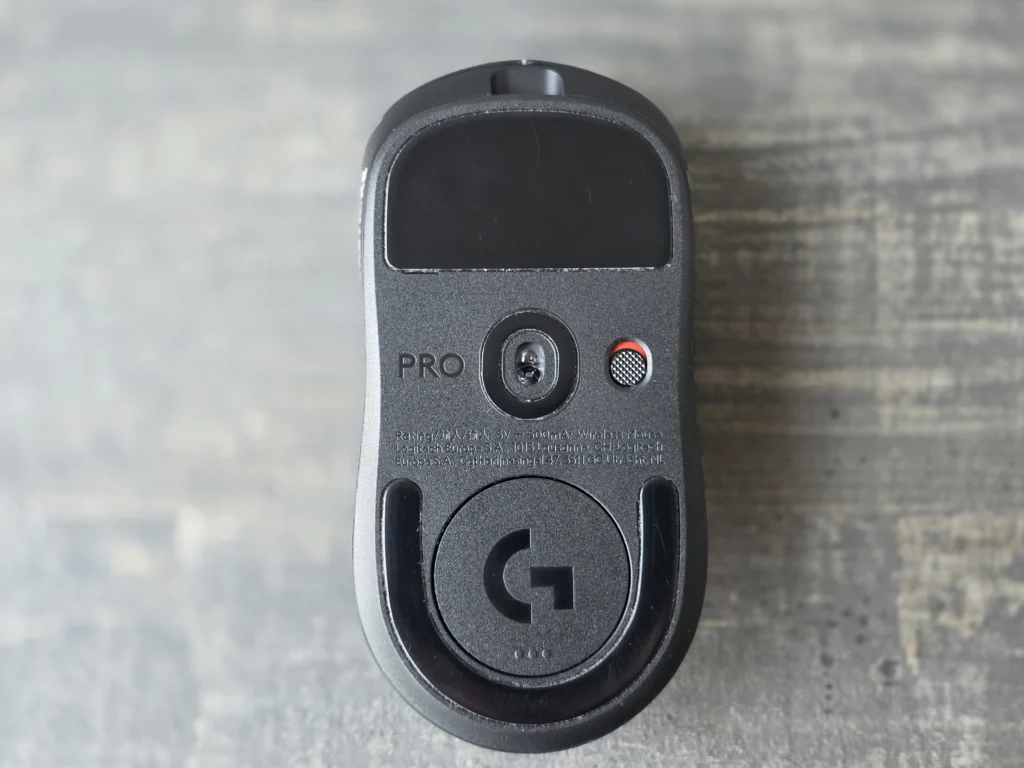
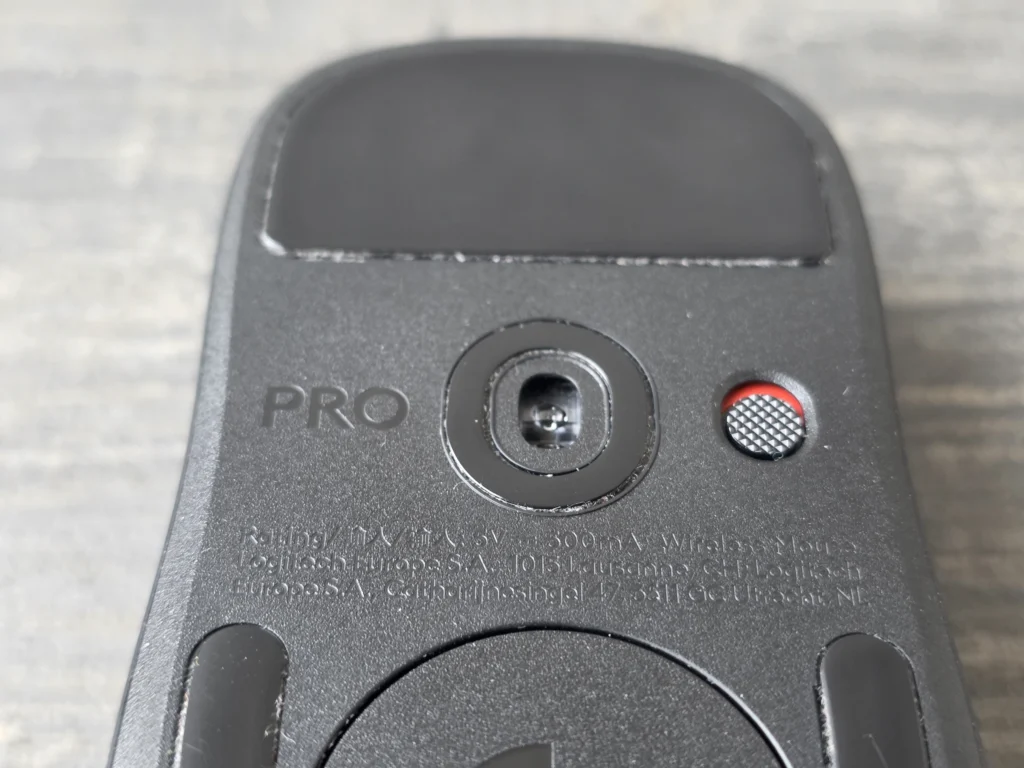
The mouse supports the POWERPLAY wireless charging system, which is sold separately. Conventional charging is handled through USB Type-C.
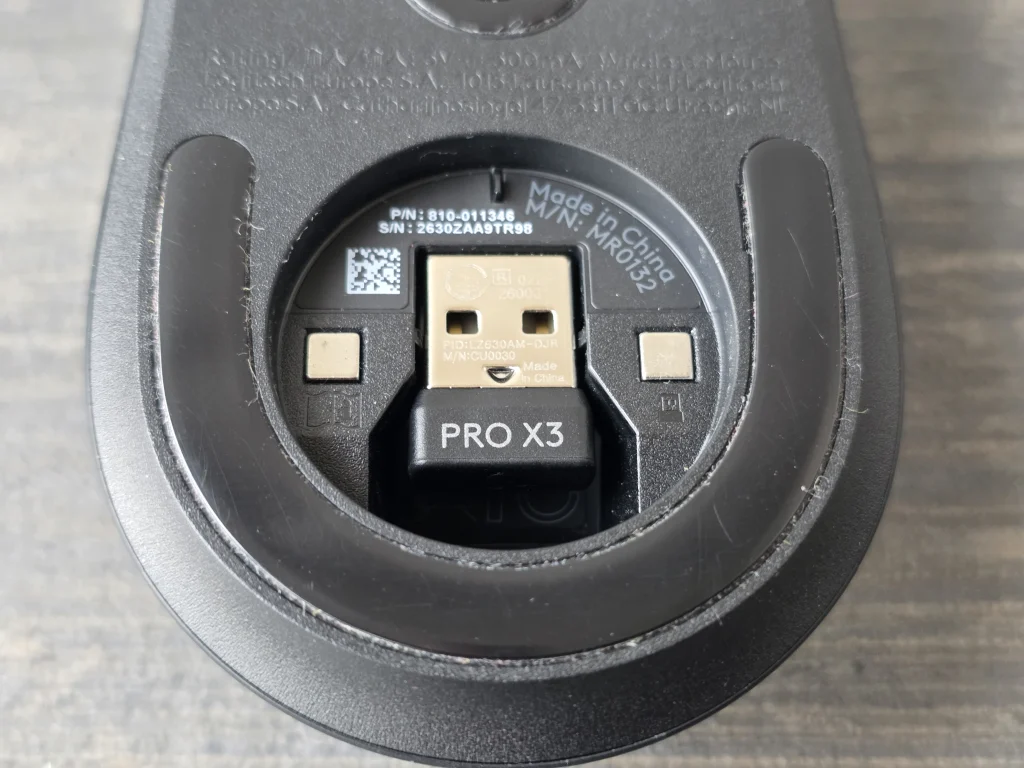
The feet deserve a separate mention. They are made from UHMWPE—ultra-high-molecular-weight polyethylene. The feet and the mouse pad should be considered together, as it is this combination that determines how the mouse glides.
Personally, I would have liked to see PTFE skates included as well, if only as an alternative for those who prefer a different level of resistance. That option certainly wouldn’t hurt on an expensive device.
Most of the PRO X3 SUPERSTRIKE’s improvements are inside the shell. First and foremost is the new NxLOGI chipset. According to Logitech, it reduces power consumption by 50% compared with the PRO X2 SUPERSTRIKE.
The most noticeable result is a claimed battery life of up to 135 hours, compared with 90 hours on the X2. An extra 45 hours on a single charge looks like a fairly practical upgrade, particularly for anyone who doesn’t use POWERPLAY.
The HERO 2 sensor has also been improved: its maximum resolution has increased from 44,000 to 48,000 DPI, while the claimed tracking speed reaches 930 IPS. The sensor’s name remains the same, but its performance limits have been raised.
Honestly, the DPI increase alone would hardly convince me to upgrade. I’m much more interested in Logitech’s work on power efficiency and the internal layout while retaining the familiar shape and HITS capabilities.
The PRO X3 SUPERSTRIKE supports polling rates of up to 8,000 Hz over both LIGHTSPEED wireless and a wired USB Type-C connection.
At 1,000 Hz, the mouse sends a report once every millisecond; at 8,000 Hz, it does so every 0.125 ms. You can set the higher rate independently for wired and wireless modes in G HUB.
Polling rate and haptic feedback intensity affect battery consumption, so the claimed 135 hours is an upper-end figure, not the battery life you can expect at the maximum 8,000 Hz setting.
Now for the defining feature of both SUPERSTRIKE generations: the Haptic Inductive Trigger System. HITS is what sets this series apart from mice with conventional mechanical or optical switches.
In our PRO X TKL RAPID review, we already looked at magnetic switches and Rapid Trigger. Here, Logitech has taken a similar approach to adjusting the actuation point, but uses a different method to detect movement.
SUPERSTRIKE’s main buttons use inductive movement sensing instead of traditional microswitches. A separate mechanism provides the tactile sensation of a click. This lets you change the actuation point and feedback intensity without replacing any physical switches.
In effect, we get three separate settings: the actuation point, the reset setting for repeated presses, and the strength of the haptic feedback. The X2 offered the same set: ten actuation levels, five Rapid Trigger levels, and six feedback options, including off.
To me, that is more interesting than another DPI increase. The feel of the buttons used to be one of those characteristics you simply had to accept when choosing a particular mouse. Now, you can change part of that experience through software.
If you tend to rest your fingers on the buttons, the shortest actuation travel can lead to accidental clicks. I’m more interested in the ability to configure the left and right buttons separately—for example, keeping firing responsive while making aiming less sensitive.
The manufacturer claims a gain of up to 30 ms over conventional switches by adjusting the actuation and reset points. Part of that difference comes from the shorter button travel needed to register a press.
In other words, all of this will already be familiar to X2 owners. The X3 develops the same concept rather than offering a completely different kind of click. We’ll return to the settings themselves in the G HUB section.
The PRO X CONTROL arrived alongside the mouse. You might wonder what could possibly be new about an ordinary cloth mouse pad. But here, Logitech is focusing on friction and predictable movement, rather than just appearance.
The pad measures 460 × 400 mm and is 6 mm thick. It is a dedicated surface for the mouse, not a full-size desk mat that also covers the keyboard area and the rest of the desk. The design features dark fabric, stitched edges, and a small Logitech G tag.
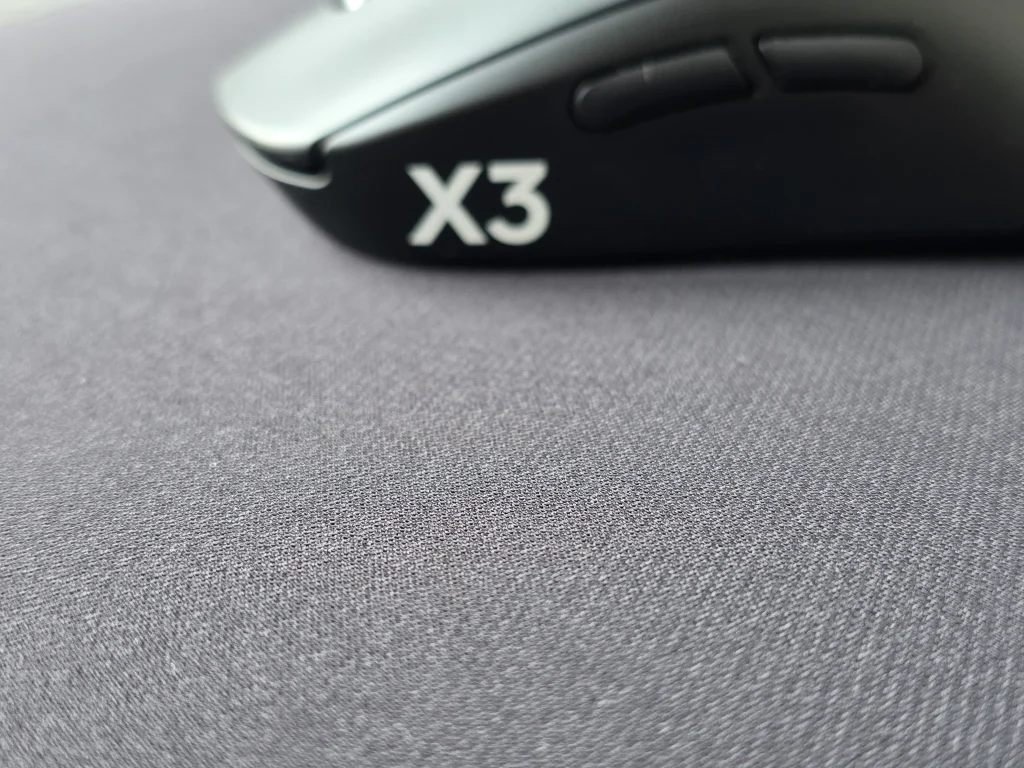
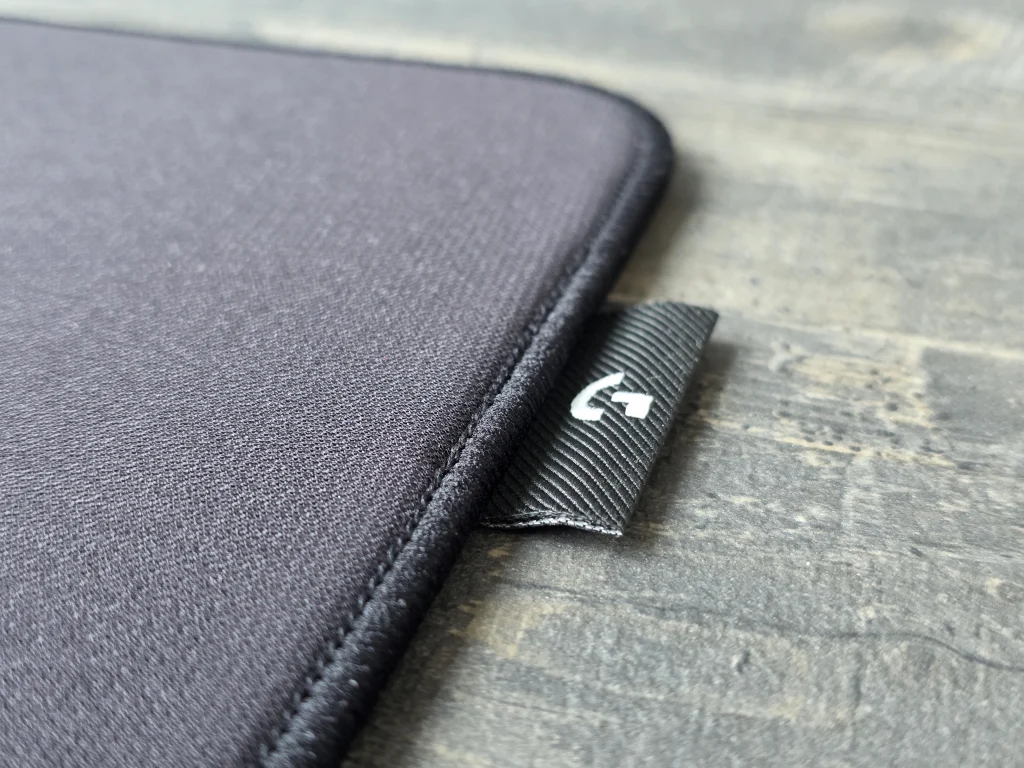
The main feature is the Omnidirectional Knit surface. According to the manufacturer’s design, it evens out friction as the mouse moves in different directions: horizontally, vertically, and diagonally.
The CONTROL name explains the positioning fairly well. This is not about making the slickest possible surface, but about balancing glide with the ability to stop the mouse exactly where you need it.
For me, the appeal of a surface like this is not just making big flicks, but also being able to make a small correction at the end of a movement. That is exactly what the CONTROL name suggests.
The base uses 6 mm of SlimFlex foam. The stitching sits below the level of the working surface, and the underside has a textured, non-slip base. The seam doesn’t protrude above the fabric, which is particularly welcome where the edge is constantly in contact with your arm.
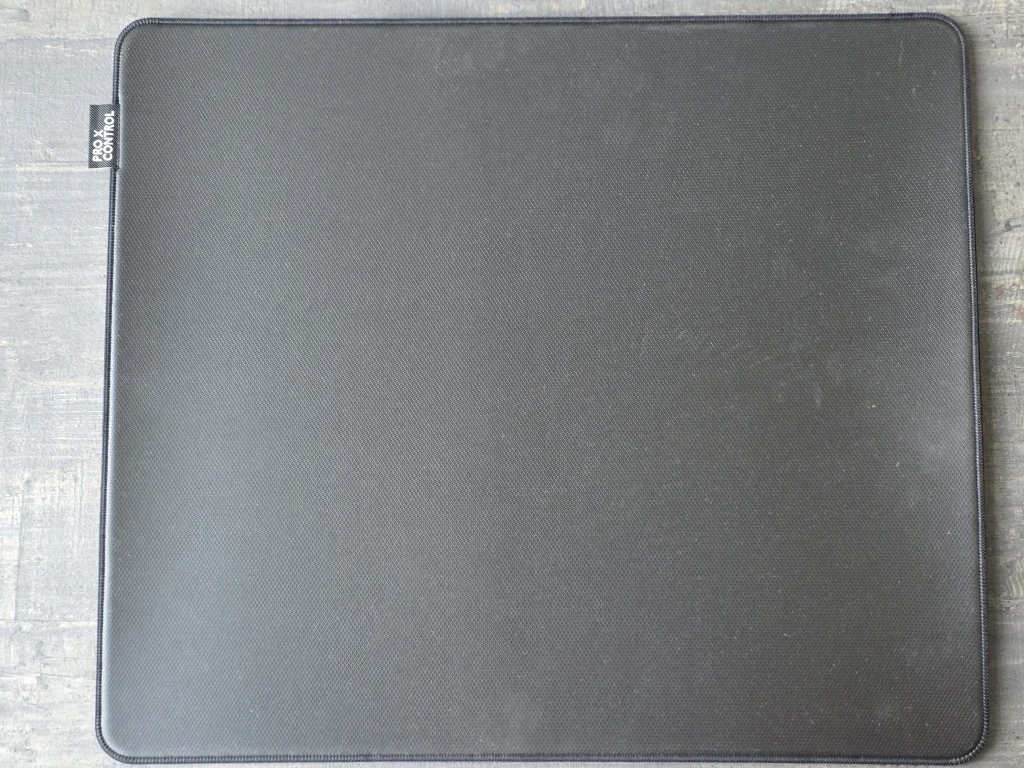
Six millimeters is fairly thick for a cloth mouse pad. The soft base adds cushioning, while the amount of downward pressure on the mouse becomes another factor affecting resistance to movement.
The PRO X CONTROL is a conventional cloth mouse pad with no electronics or wireless charging.
With the PRO X3 SUPERSTRIKE, the software deserves a closer look. Here, we can adjust not only sensor sensitivity and button assignments, but also exactly how the mouse responds to a press. X2 owners will already be familiar with the way HITS Configuration works.
Of course, you can use the mouse with its default settings. But to me, buying a SUPERSTRIKE and never opening the HITS settings means overlooking its most interesting feature.
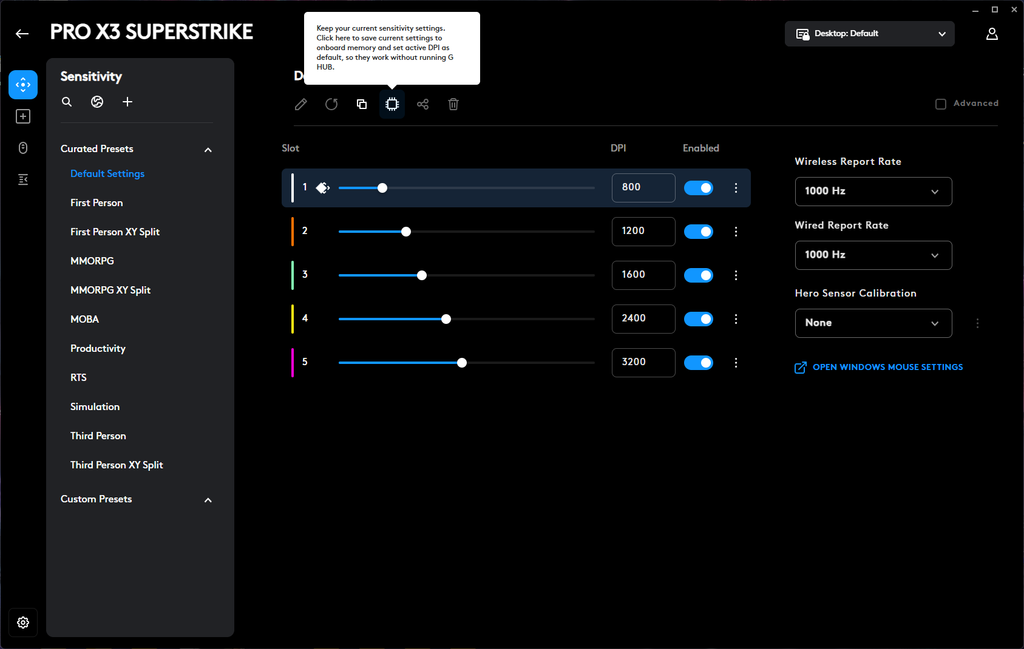
Let’s start with the familiar Sensitivity section. There are five sensitivity stages, each of which can be adjusted or disabled. In the screenshot, these are 800, 1,200, 1,600, 2,400, and 3,200 DPI. If you only use one value, there is no need to keep all five active.
On the left are ready-made presets for shooters, MOBAs, MMORPGs, strategy games, simulators, and everyday work. There are also XY Split options with separate sensitivity values for the horizontal and vertical axes.
The polling rate can be configured separately for wired and wireless connections. The screenshot shows 1,000 Hz, while the maximum for both modes is 8,000 Hz.
Hero Sensor Calibration deserves a separate mention. This feature helps you carry over the sensitivity you are used to from another mouse: the software compares the movement of the two devices and calculates a DPI adjustment. A useful little feature when switching to a new mouse.
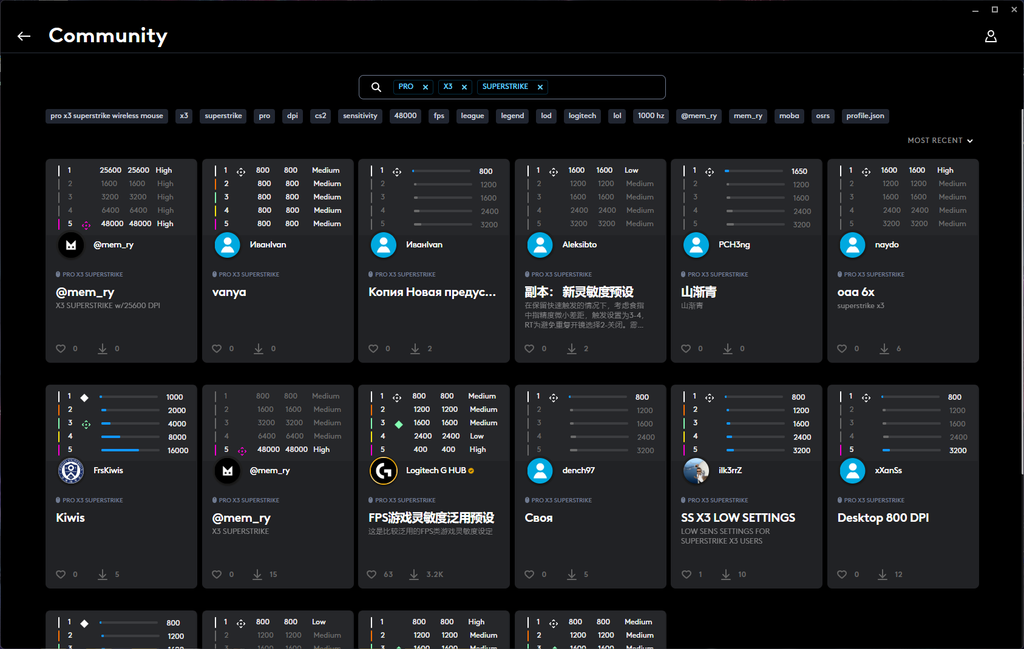
For those who don’t want to start from scratch, there is Community. Here, you can find user-created configurations, view their settings, and download them. You can search by model, use topic tags, and sort presets.
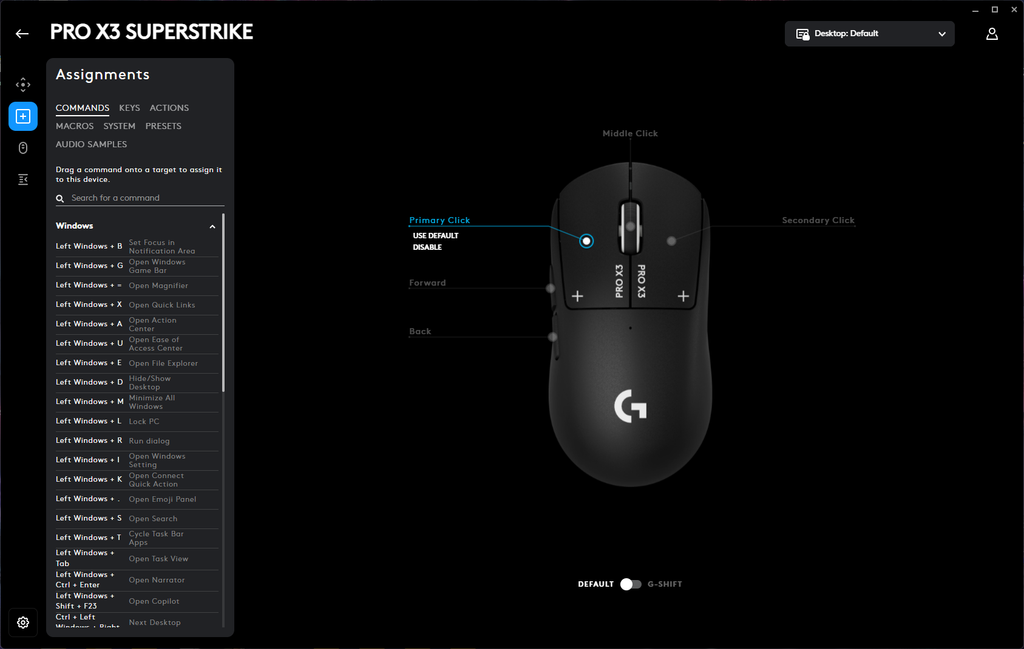
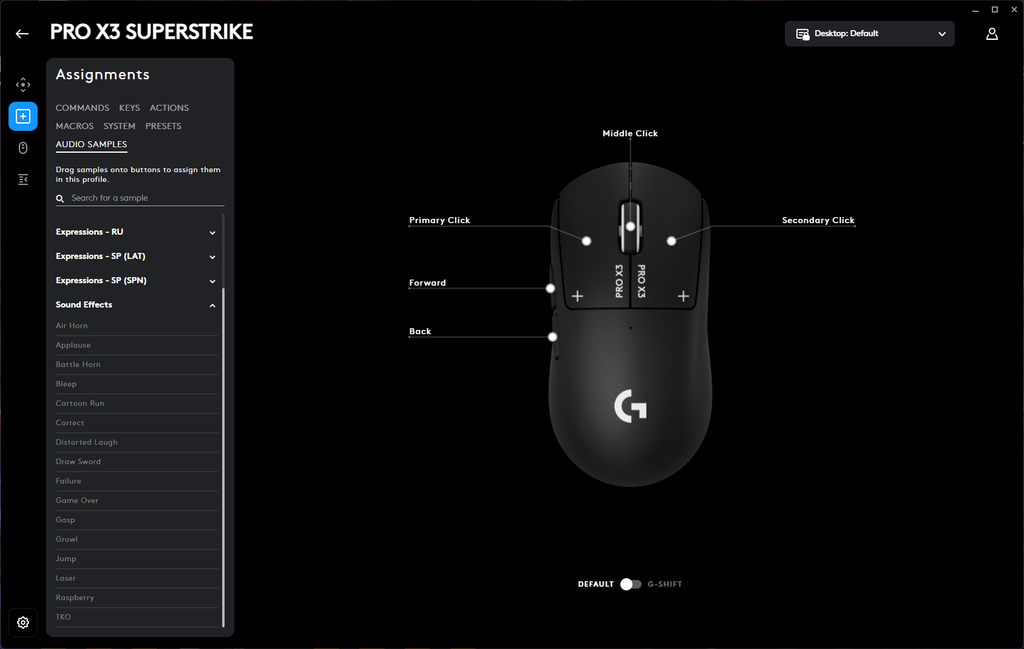
Next up is Assignments. The interface is straightforward: choose the command you need and drag it onto the corresponding button on the mouse illustration.
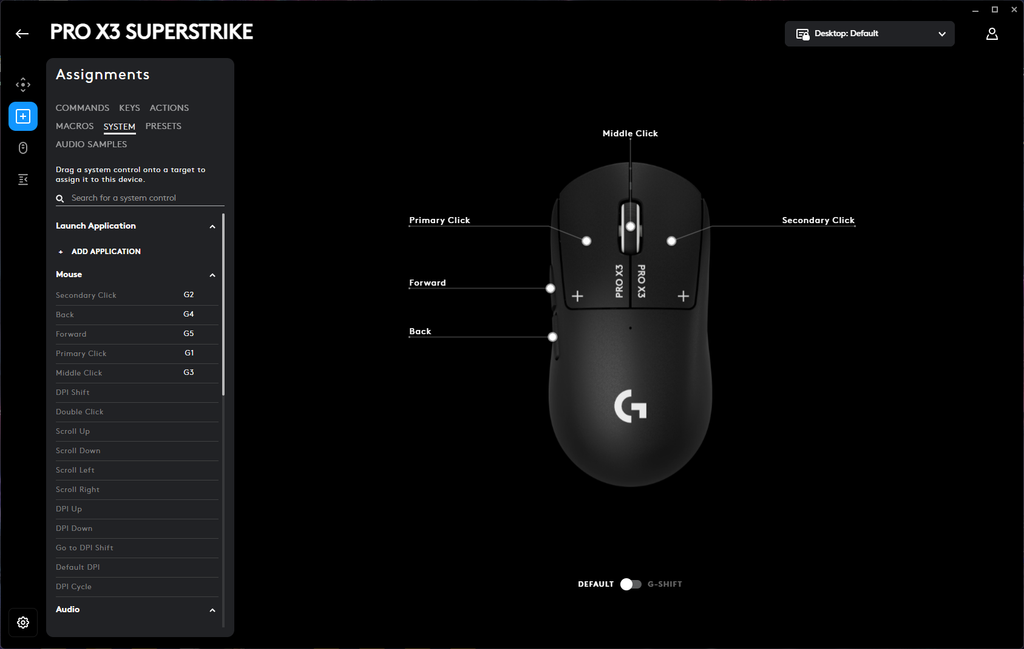
The list includes keyboard keys and shortcuts, system commands, application launches, media controls, and the mouse’s own functions. For example, you can assign DPI switching or DPI Shift—a temporary change to a different sensitivity.
There are five physical buttons, so adding another action means giving up one of the standard functions. For instance, you could replace the browser’s Forward command with DPI switching.
G-SHIFT partly addresses this. While you hold down the assigned modifier button, the other buttons use an alternative set of commands. This lets you assign additional actions to the same controls.
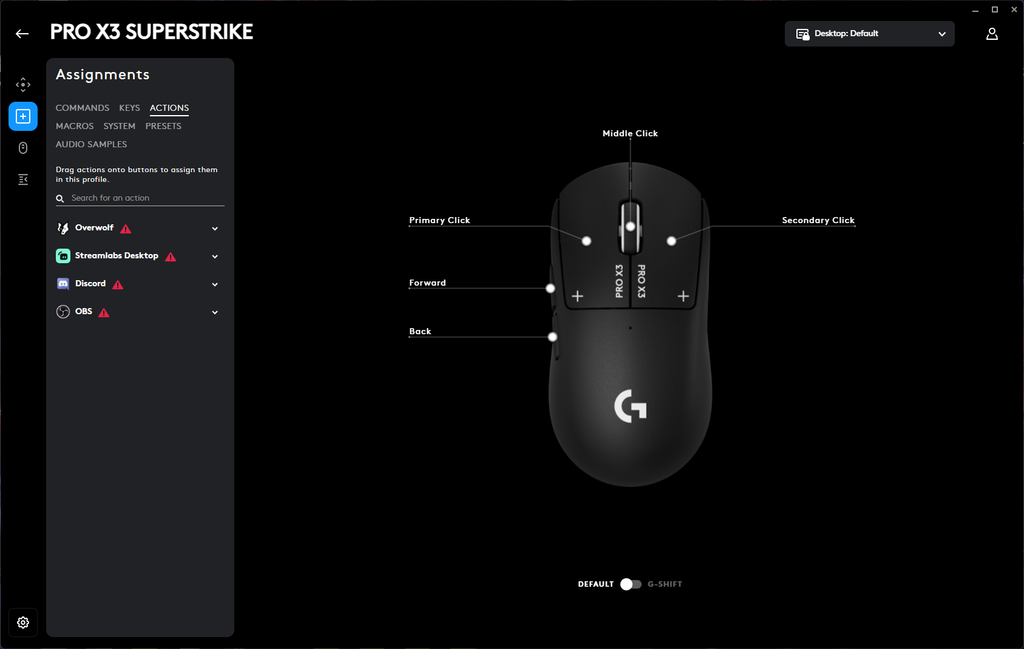
The Actions tab contains integrations with Discord, OBS, Streamlabs Desktop, and Overwolf. Their commands become available once the relevant connection has been configured.
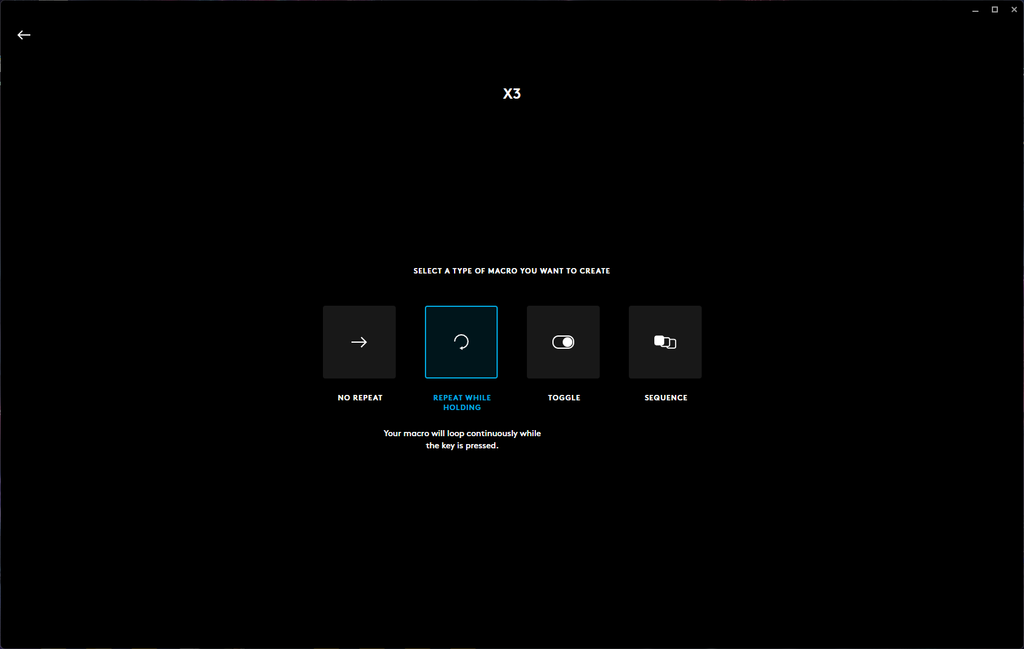
There are four macro modes: a single execution, repetition while holding a button, starting and stopping with successive presses, and command sequences. These can be useful not only in games, but also for repetitive tasks at work.
There is even Audio Samples, which lets you assign sound effects and voice clips to buttons. Personally, this is far from a priority feature in a gaming mouse, but some people may find it useful for streaming or chatting with friends.
Sensitivity settings can be saved to onboard memory, making the active DPI the default when G HUB is not running.
For more complex scenarios, you will still need the software: Repeat While Holding, Toggle, and Sequence macros do not work in onboard memory mode.
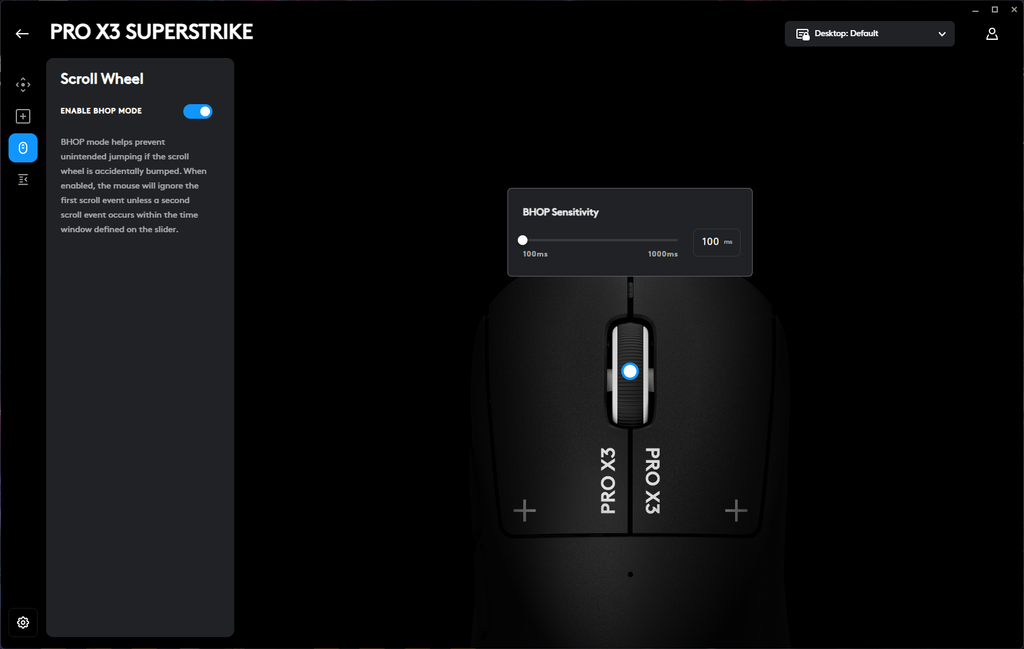
The scroll wheel has its own section with a feature called BHOP Mode. It will come in handy for anyone who binds jumping to scrolling and wants to avoid accidental inputs.
The mouse ignores the first scroll-wheel input unless another follows within a specified period. This confirmation window can be set between 100 and 1,000 ms.
This filters out a single accidental scroll, while consecutive wheel movement is recognized as intentional. It is an input filter, not automated jumping.
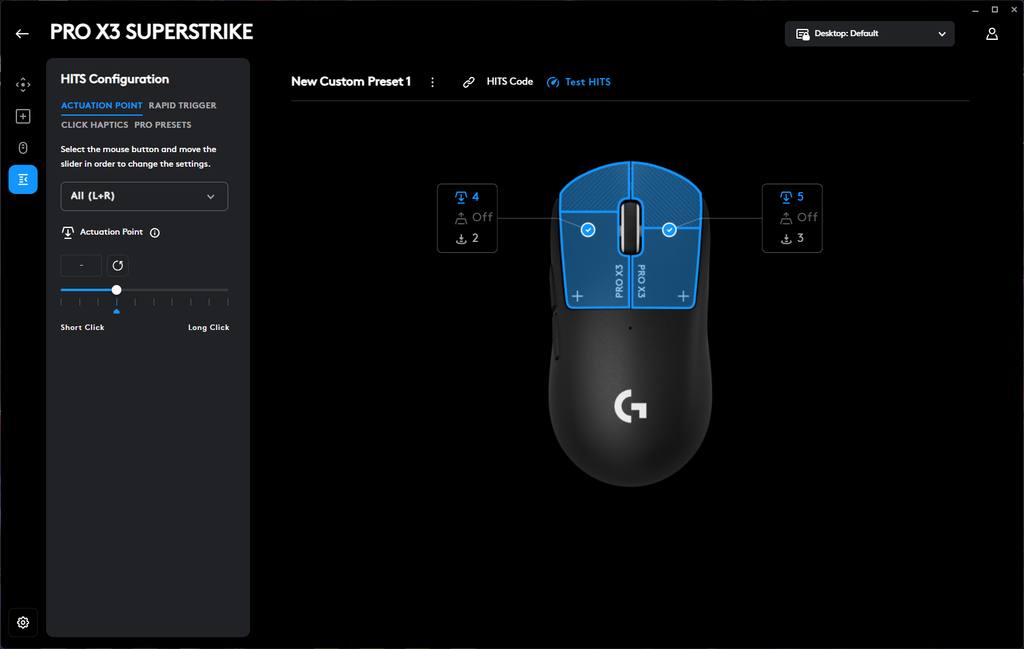
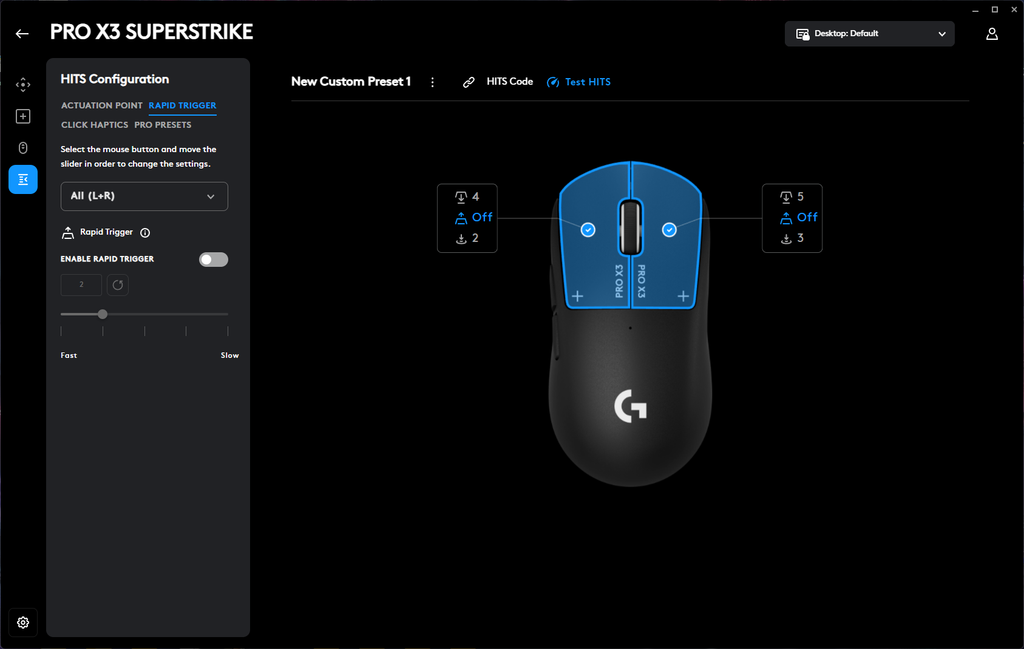
Now for the main attraction. HITS Configuration lets you adjust the left and right main buttons separately or change their settings together.
The first option is Actuation Point—the point at which a press registers. There are ten levels, ranging from shorter to longer button travel before a click is registered. This changes the actuation depth, not the button’s physical stiffness.
For example, you can make the left button more sensitive while leaving the right button with a deeper actuation point. Firing and aiming do not have to use the same settings.
The second option is Rapid Trigger. It determines how far you need to release the button before it is ready for another press. There are five levels to choose from, and the feature can also be disabled.
This allows repeated clicks with less upward button travel. You still make each press with your finger—Rapid Trigger only changes the reset point.
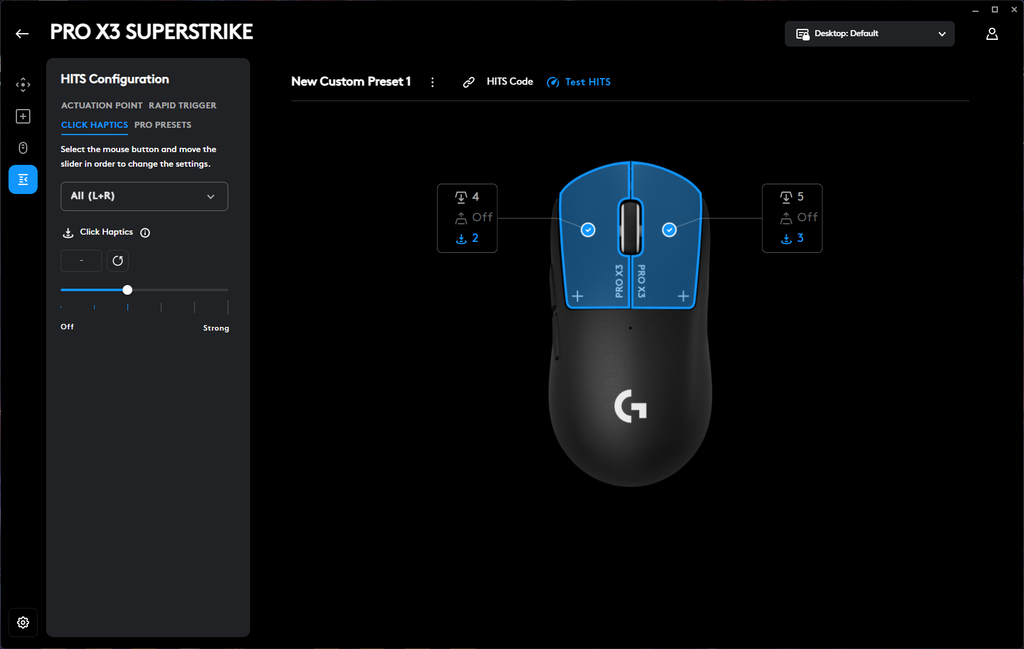
The third setting is Click Haptics. This controls the intensity of the haptic feedback, from off to level five, the strongest setting. That gives you six options, independent of the selected actuation point.
In the screenshots, the left button has an actuation point of 4 and haptic feedback of 2, while the right is set to 5 and 3 respectively. Rapid Trigger is disabled for both.
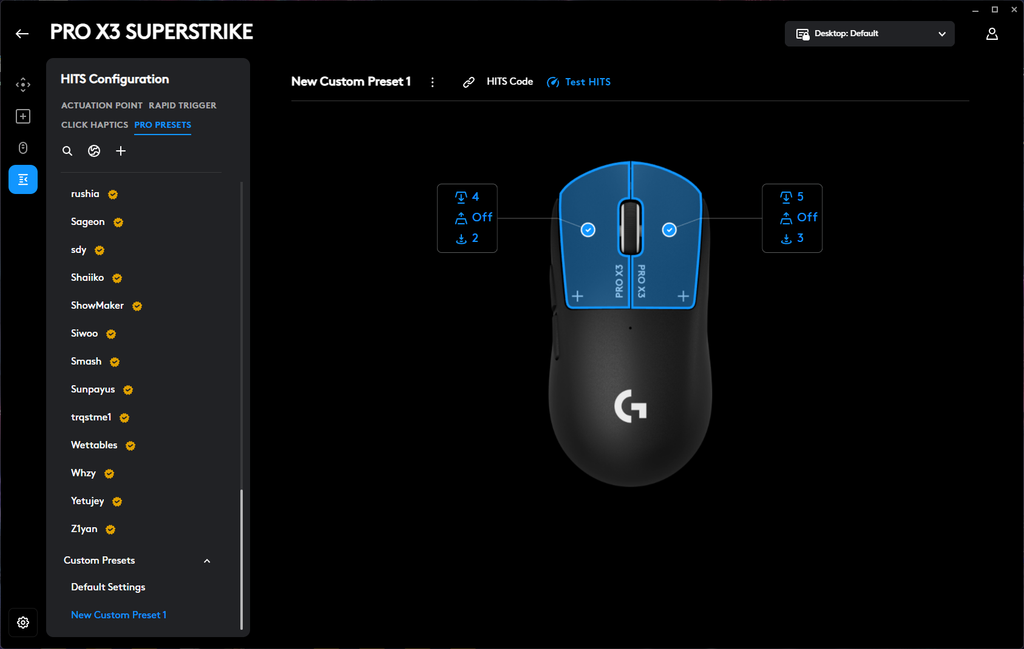
Pro Presets contains configurations from professional players, including Shaiiko, ShowMaker, and Sunpayus. With HITS Code, settings can be imported or shared with another user as a text code.
A ready-made preset is a convenient starting point, after which you can adjust individual settings to suit yourself. There is no need to manually recreate the entire configuration for both buttons.
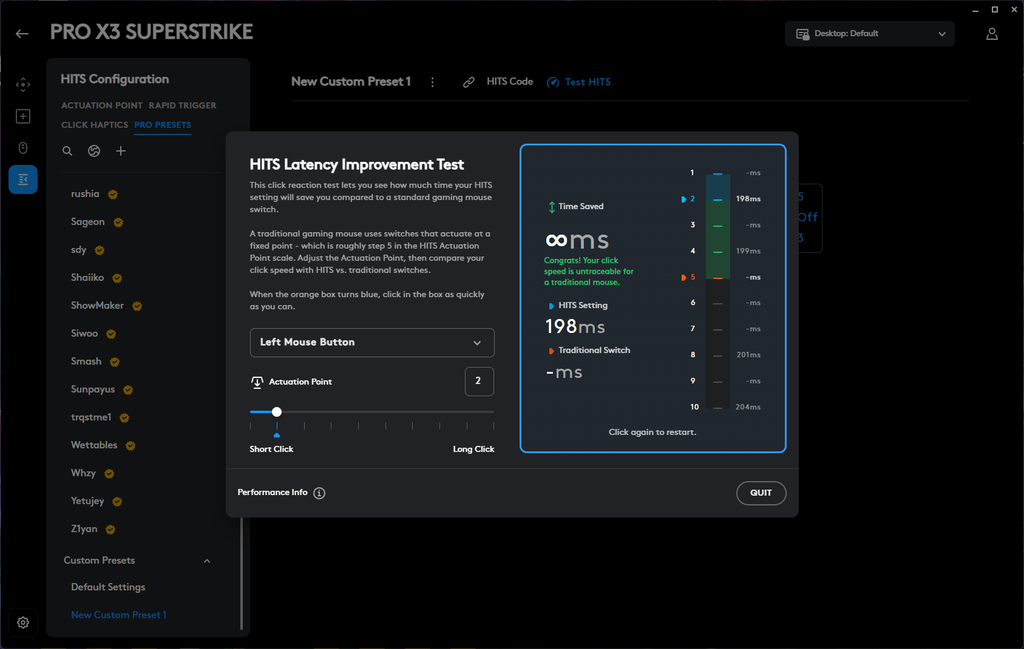
Alongside this is the HITS Latency Improvement Test. It is a simple reaction test: a field on the screen changes color, and you have to click as quickly as possible. The actuation point can be changed directly in the test window.
The screenshot shows a result of 198 ms with Actuation Point set to level two. The software measures the time from the visual cue to the click, including the user’s reaction time.
As usual, let’s start with the downsides. The PRO X3 SUPERSTRIKE remains an expensive device with a fairly limited set of controls. Two side buttons and a conventional scroll wheel suit competitive shooters, but this is not a productivity mouse, and I certainly wouldn’t want more buttons on it. I would also add a spare set of PTFE feet to the package: on a flagship mouse, the option to choose a different glide feel would be a welcome bonus.
For me, though, the main advantage is HITS. Not so much for the promised milliseconds, but for the ability to find my own preferred click. You can keep a short actuation travel with pronounced feedback, or configure the right button differently from the left. That is far more interesting than simply getting used to whichever switches the manufacturer has fitted. Many people may find LIGHTSPEED loud at night, and the PRO X3 SUPERSTRIKE completely solves that problem, even if that is essentially a side benefit.
Personally, I prefer the idea of moderate haptic feedback and predictable presses. Maximum sensitivity and the fastest Rapid Trigger setting should not force you to constantly monitor your fingers. A good mouse should adapt to your hand, not the other way around. This is where SUPERSTRIKE’s capabilities make the most sense to me.
The PRO X CONTROL complements this idea from another angle: control over movement. I like its understated design, soft base, and attention to the edges. It is an interesting option for fans of cloth surfaces.
Is it worth upgrading from the PRO X2 SUPERSTRIKE? The previous model already offers HITS with adjustable actuation, Rapid Trigger, and haptic feedback. The X3’s main selling points are its longer claimed battery life, new electronics, and revised internal layout. These are welcome improvements, but they do not make the X2 obsolete.
For a first introduction to the series, though, the X3 looks like a logical choice. It keeps its predecessor’s most interesting technology and refines the rest of the device. That is especially appealing to an enthusiast who is willing to spend time in G HUB and tailor both buttons to their habits. There is genuinely more to experiment with here than simply setting your usual DPI.
Ultimately, SUPERSTRIKE’s main appeal for me is not the promise of playing better, but the ability to fine-tune the mouse to suit me. And that is a far more interesting direction than another DPI record.


